A phone that suddenly feels hot, loses battery quickly or uses more mobile data than usual can be worrying. But those symptoms do not automatically mean the phone has been hacked. A software update, a poorly behaving app, weak signal, background photo syncing or an ageing battery can produce similar effects.
A better way to investigate is to look for evidence that an unauthorized person, app or account session has gained access. The strongest clues are usually not vague performance problems. They are things such as an unknown device signed into your account, security settings you did not change, a harmful-app warning, unfamiliar apps or management profiles, unexplained access to sensitive permissions, messages you did not send, or purchases you did not make.
This guide explains how to separate weak clues from stronger evidence and what to check on both Android and iPhone.
First, what does “hacked phone” actually mean?
People use the phrase “my phone was hacked” to describe several different problems. They are not all the same.
Your phone might contain a malicious app. Someone may have stolen the password to your Google Account, Apple Account, email or social media without compromising the operating system itself. A person who had physical access to the device may have installed an app, changed sharing settings or added a management profile. In a more serious case, the device could be affected by spyware or an operating-system exploit.
Those situations require different responses. That is why the first goal is not to prove that the phone is “hacked” in a broad sense. The goal is to identify which trust boundary may have failed: the device, an app, the account, the SIM or mobile service, or a connected cloud service.
Strong signs that deserve immediate attention
Some indicators are much more meaningful than battery drain or a slow phone.
1. You see an unknown device or sign-in on your main account
Google tells users who suspect account compromise to review recent security events and the devices using the account. An unfamiliar device, sign-in or security event is direct evidence that someone may have gained account access.
On a Google Account, open the account security page, review Recent security events, then check Your devices. Google recommends securing the account if you find activity that was not yours.
Apple provides similar guidance. Apple lists notifications about unknown sign-ins, two-factor codes you did not request, devices you do not recognize, account changes you did not make and purchases you do not recognize as signs that an Apple Account may be compromised.
This distinction matters because an attacker can access cloud data without installing malware on the phone. If your email, photos, files or backups are exposed through a stolen account password, the phone itself may appear completely normal.
2. Security details changed without you
Treat unfamiliar changes to passwords, recovery email addresses, recovery phone numbers, two-factor authentication methods, trusted devices, forwarding settings or location sharing as high-priority evidence.
For Google Accounts, official recovery guidance specifically tells users to check security events, devices, recovery details, apps with account access and unusual activity across Google services. Apple similarly recommends reviewing account information and removing devices you do not recognize.
If the password suddenly stops working or the account recovery details now belong to someone else, begin account recovery immediately from a trusted device.
3. Your phone or security service reports a harmful app
On Android, Google Play Protect checks installed apps for harmful behavior, including apps from outside the Play Store. Google says Play Protect can warn about, disable or remove potentially harmful apps and can block some unverified applications that request sensitive permissions commonly abused in fraud.
A Play Protect warning is much stronger evidence than generic battery drain. Do not ignore it merely because the app appears familiar or because you installed it intentionally.
Open the Google Play Store, tap your profile picture, then Play Protect and review the device status. Google recommends keeping Play Protect enabled.
On iPhone, the security model is different, so you should focus on account activity, app permissions, configuration profiles, device management and Apple security notifications rather than looking for an Android-style malware scanner.
4. An app has access it does not need
A calculator should not normally need your microphone. A simple wallpaper app should not need SMS access. A game should not have continuous access to your precise location unless its functionality genuinely requires it.
On Android, review permissions through Settings > Security & Privacy > Privacy > Permission manager on supported devices. Exact menu names vary by manufacturer. Look especially at camera, microphone, location, contacts, SMS, call logs, files and phone permissions.
On iPhone, Settings > Privacy & Security allows you to review permissions. Apple also provides App Privacy Report on supported versions of iOS. It can show when apps accessed privacy-sensitive data such as location, camera and microphone, along with network activity. Unexpected access is not proof of malware by itself, but it is a useful investigation signal.
The question to ask is simple: does this access make sense for what the app is supposed to do?
5. You find an unknown management profile on iPhone
Configuration profiles and mobile device management can legitimately be used by schools and businesses. They can also control important device settings.
Apple recommends checking Settings > General > VPN & Device Management if you are concerned about an unexpected profile. If no profile section appears, no device-management profiles are installed. If you find a profile you do not recognize on a personally owned device, investigate where it came from before deleting it.
Do not remove a legitimate work or school profile without checking with the administrator because doing so can remove managed settings, apps or access.
6. Messages, calls, purchases or actions happened without you
Unexplained outgoing messages, new forwarding rules, account changes, app purchases, financial transactions or password-reset attempts are stronger signals than a device simply being slow.
These events may indicate account compromise, malicious software, social engineering or unauthorized physical access. Record what happened, secure the associated account and check related services rather than concentrating only on the handset.
If financial information may be involved, contact the relevant bank or payment provider through an official channel. Google also advises users who suspect account compromise to check for unauthorized financial activity when payment information is linked to the account.
Weak clues that are often misunderstood
Several popular “hacked phone signs” are real symptoms of abnormal behavior but are poor evidence on their own.
| Symptom | Why it can happen normally | When it becomes more concerning |
|---|---|---|
| Battery drains quickly | Old battery, updates, background syncing, poor signal | Combined with an unfamiliar app, unknown permission use or unexplained background activity |
| Phone feels hot | Gaming, charging, camera use, updates, weak signal | Persistent heat while idle plus suspicious apps or unexplained data use |
| High data usage | Cloud backup, video, app updates, tethering | A specific unfamiliar app is responsible for unexpected background traffic |
| Device is slow | Low storage, old hardware, software bugs | Slowdown started after installing an unknown app or changing security settings |
| Pop-ups appear | Aggressive websites or ad-supported apps | Pop-ups continue outside the browser or accompany harmful-app warnings |
| Random crashes | App bugs, storage issues, OS problems | Crashes occur with other direct evidence of unauthorized access |
The important principle is correlation. One weak symptom proves very little. Several independent indicators pointing to the same app, account or time period deserve closer investigation.
A practical Android security check
If you use Android, work through the following checks rather than downloading a random “phone cleaner” or antivirus app from an advertisement.
Check Play Protect
Open Google Play Store, tap your profile icon, then Play Protect. Keep scanning enabled and review any warning carefully. Google states that Play Protect periodically checks installed apps and may disable or remove harmful software.
Review recently installed apps
Look through Settings > Apps and identify anything you do not remember installing. Pay particular attention to apps installed outside the Play Store, remote-access tools, unknown accessibility services, device-admin apps and apps with generic names or icons.
Do not remove software blindly from a work-managed phone. If the device belongs to an organization, contact its administrator.
Review permissions
Use the Android permission manager and inspect access to microphone, camera, location, contacts, SMS and files. Remove permissions that are unnecessary for an app’s legitimate function.
Review your Google Account separately
Go to your Google Account security settings, inspect recent security events and devices, then remove or secure anything unfamiliar. This step is essential because a compromised Google Account can expose data even when the Android installation itself is clean.
Install available security updates
Android updates include operating-system, security and Google Play system fixes. Menu names vary by vendor, but current Pixel guidance places update checks under Settings > System > Software updates. Other manufacturers provide their own equivalent menu.
Keeping the operating system current reduces exposure to vulnerabilities that already have fixes.
A practical iPhone security check
For iPhone, start with Apple Account and sharing controls.
Review devices on your Apple Account
Open Settings > [your name] and review the devices shown under your Apple Account. Apple recommends removing devices you do not recognize. You can also review devices through the Apple Account website.
Use Safety Check when appropriate
On iPhone with supported iOS versions, Settings > Privacy & Security > Safety Check can help review people and apps with access to your information, devices connected to your Apple Account, system privacy permissions and account security settings.
Safety Check is particularly useful when you are worried that another person has had access to your device or sharing settings.
Review App Privacy Report
If enabled, Settings > Privacy & Security > App Privacy Report can show how apps accessed sensors and data such as location, camera and microphone during the previous seven days, along with app network activity.
Unexpected access deserves investigation, but network activity alone does not prove malicious behavior. Many legitimate apps contact several domains for content delivery, authentication, analytics or notifications.
Check VPN and device-management profiles
Open Settings > General > VPN & Device Management. Investigate any profile you do not recognize, especially on a personally owned phone.
Update iOS
Apple’s security release page showed iOS 26.6.1 as the latest iOS release for supported newer iPhones on August 29, 2026, with older supported devices receiving their applicable security branches. The important action is to install the newest security update that Apple offers for your specific device rather than relying on a version number from an old article.
What to do if you find convincing evidence
If you find an unknown account session, suspicious app, harmful-app alert, unauthorized profile or clear account activity, respond in a controlled order.
First, use a trusted device if possible to change the password of the affected primary account. Use a strong password that is not reused elsewhere. Turn on two-factor authentication where available and remove unknown sessions, devices and recovery methods.
Next, remove confirmed harmful or unwanted apps and revoke unnecessary permissions. Update the operating system and important apps.
Then review email, banking, social media and other important accounts that were accessible from the phone. If you reused the same password elsewhere, change those passwords too. A compromised email account is especially important because it can be used to reset other accounts.
If a scammer was given remote access, the US Federal Trade Commission recommends updating security software, scanning the device, removing identified problems, changing passwords and enabling two-factor authentication. The exact support path will differ by country, but the recovery principles remain useful.
When a factory reset makes sense
A factory reset is a powerful step, but it should not be the first response to every suspicious symptom.
Google’s Android guidance confirms that a factory reset erases device data and uninstalls apps. Before resetting, you need to know the Google Account credentials on the device and should back up important data. If malware cannot be removed reliably, the device behaves suspiciously after other checks, or a trusted support provider recommends a reset, it can provide a clean starting point.
If you reset because you suspect malicious software, be selective when restoring apps. Reinstall software from trusted official stores rather than restoring an unknown APK or questionable app that may have caused the problem.
For iPhone, follow Apple’s current erase and recovery guidance if a full reset is necessary. Account security still needs to be fixed separately because erasing the handset does not automatically secure a stolen cloud-account password.
What if you suspect advanced spyware?
Most everyday phone-security incidents involve phishing, stolen passwords, malicious or abusive apps, scams or unauthorized physical access. Highly sophisticated targeted spyware is a different threat model.
Apple provides Lockdown Mode for users who believe they may be individually targeted by extremely sophisticated attacks, including mercenary spyware. It intentionally reduces some device functionality to shrink the attack surface.
If you are a journalist, activist, public official, executive, researcher or another person with reason to believe you are specifically targeted by a capable adversary, avoid experimenting with the device in ways that may destroy evidence. Seek help from a reputable specialist or an appropriate digital-security organization.
Do not trust “hacker detector” apps blindly
Fear creates a good market for misleading security products. An app that displays a dramatic warning after a generic scan has not necessarily discovered a real compromise.
Prefer evidence from the operating system, account-provider security logs, permission history, trusted security tools and official support guidance. Be cautious with any app or website that claims it can instantly tell you who hacked your phone, asks for excessive permissions or demands payment before showing vague “threats.”
The same rule applies to online advice: a checklist of battery drain, heat and pop-ups can help you notice abnormal behavior, but it should not be presented as proof of hacking.
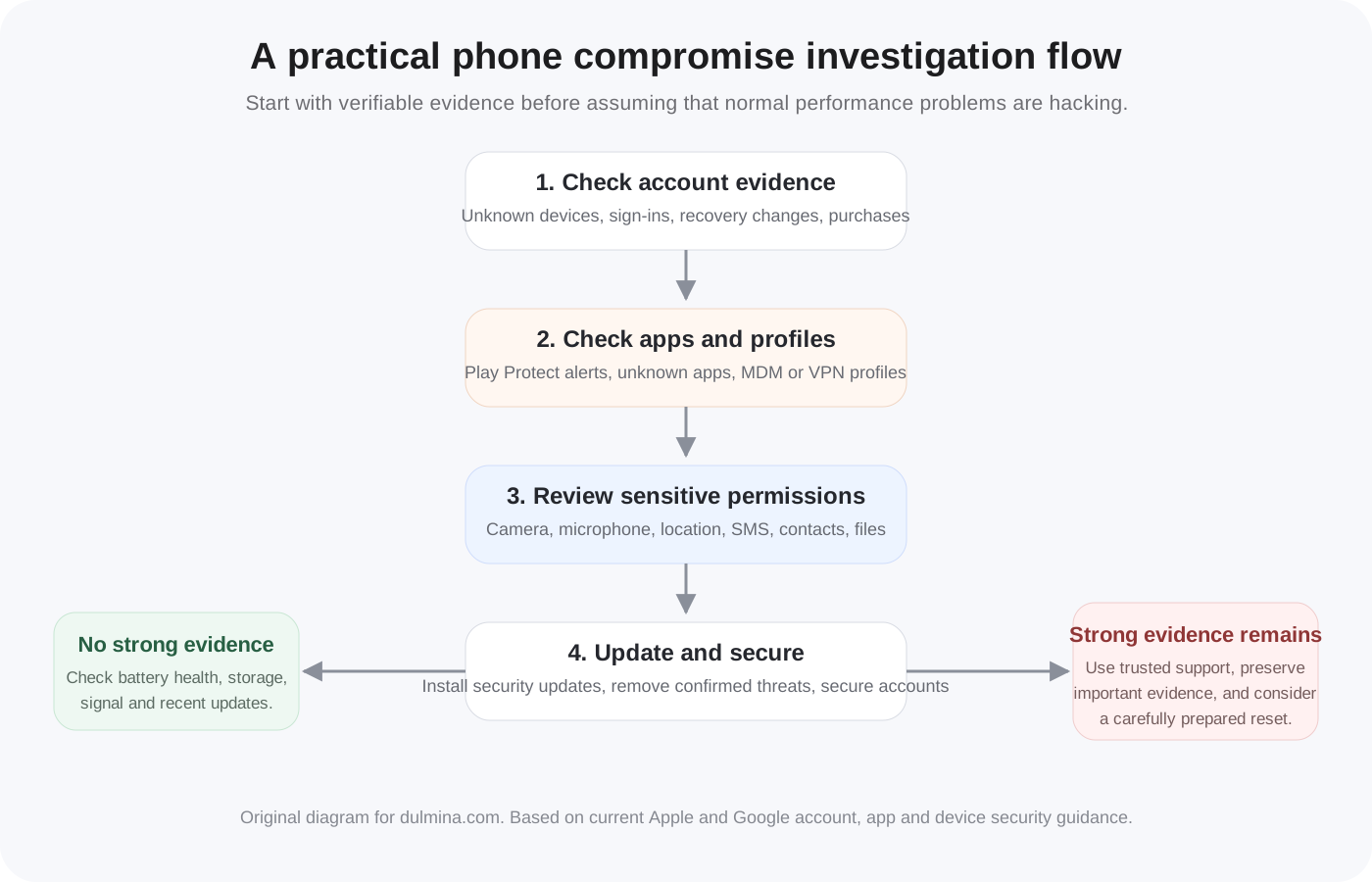
A simple evidence-based decision process
When something feels wrong, ask these questions in order:
- Is there direct account evidence? Check security events, sessions, trusted devices and recovery settings.
- Is there direct app evidence? Check harmful-app warnings, unfamiliar apps, permissions and device-management controls.
- Is there unauthorized activity? Look for messages, purchases, transfers, password resets or sharing changes you did not make.
- Is the software current? Install the latest security updates available for the device.
- Can the problem be explained normally? Battery health, low storage, weak signal and recent updates can create symptoms that look suspicious.
- Does the evidence persist after cleanup? If strong indicators remain, escalate to trusted technical support or consider a carefully prepared reset.
This process is more reliable than trying to diagnose a compromise from one symptom.
The main takeaway
A phone does not become “proven hacked” because the battery drains quickly or the device becomes hot. Those are prompts to investigate, not conclusions.
Stronger evidence comes from things you can verify: unfamiliar account sessions, security changes you did not make, harmful-app alerts, suspicious permissions, unknown management profiles, unauthorized messages or purchases, and other activity that crosses a clear trust boundary.
Start with account security, then inspect apps and permissions, install updates, and only move to destructive recovery steps such as a factory reset when the evidence and situation justify it. That approach reduces panic while still taking real compromise seriously.
For related background, see What Is Malware?, What Is Phishing? and Smishing and Vishing Explained.
Sources and further reading
- Google Account Help: Secure a hacked or compromised Google Account
- Google Play Help: Use Google Play Protect to help keep your apps safe and your data private
- Android Help: Reset your Android device to factory settings
- Apple Support: If you think your Apple Account has been compromised
- Apple Support: Safety Check for an iPhone with iOS 16 or later
- Apple Support: About App Privacy Report
- Apple Support: Review and delete configuration profiles
- Apple Support: Apple security releases
- FTC Consumer Advice: What To Do if You Were Scammed